Scanning Walkthrough
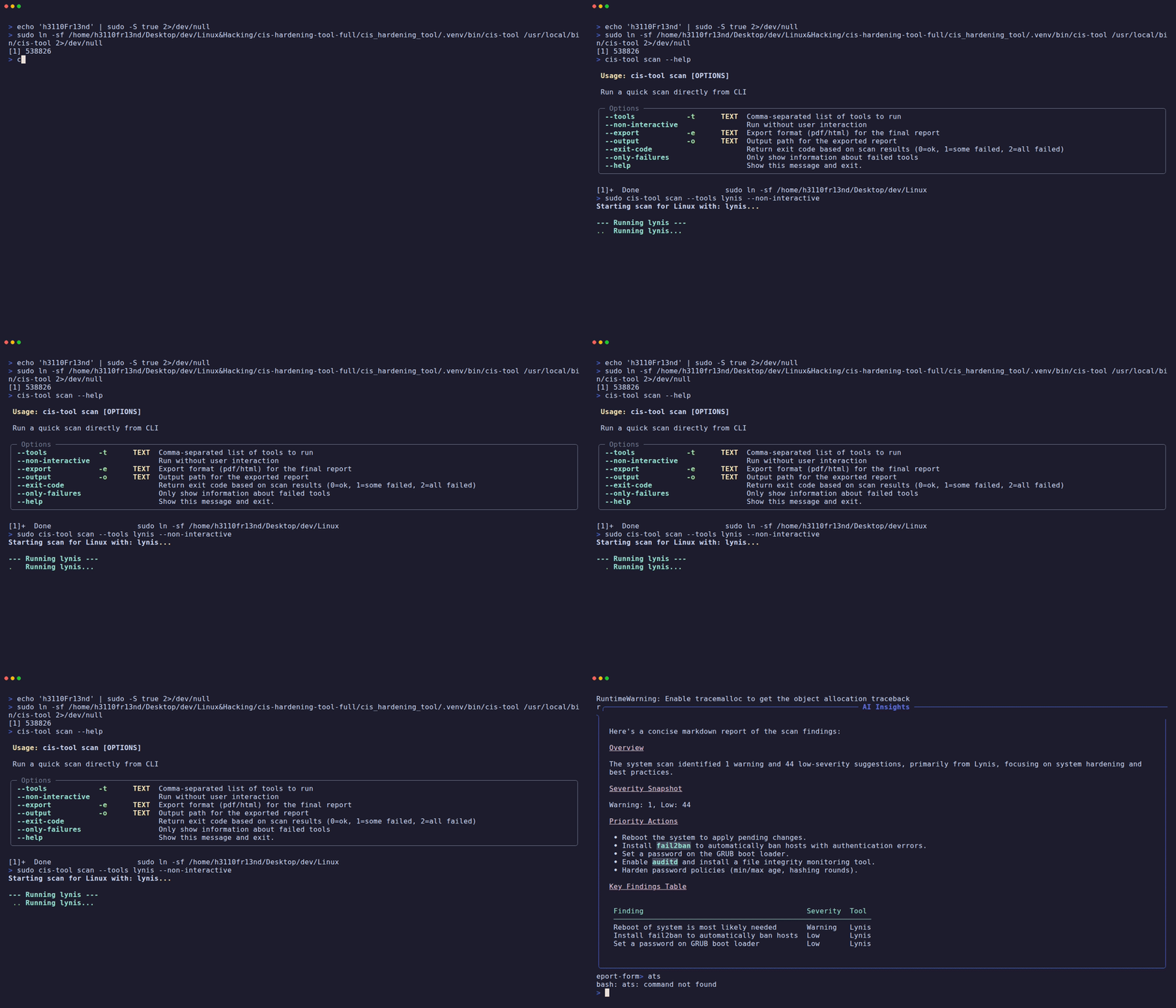
Scanning is the core feature of CISentinel — running security benchmarks using industry-standard tools and consolidating results.
Interactive Scanning
- A checkbox selector shows installed tools (pre-checked)
- Select which tools to run
- Each tool runs sequentially with:
- A Rich spinner showing progress
- A bordered output preview panel
- A completion status message
- A summary table shows pass/fail per tool
- If an AI API key is configured, an AI insights panel appears automatically
Non-Interactive Scanning
# Single tool
sudo cis-hardening-tool scan --tools lynis --non-interactive

# Multiple tools
sudo cis-hardening-tool scan --tools lynis,openscap --non-interactive

# With report export
sudo cis-hardening-tool scan --tools lynis --non-interactive --export pdf --output report.pdf
What Happens During a Scan
Linux Scan Flow
1. ToolManager detects OS (e.g., Ubuntu 22.04)
2. LinuxWrapper is instantiated with OS details
3. For each selected tool:
   ├── openscap: runs oscap xccdf eval with auto-detected SSG content
   ├── lynis:    runs lynis audit system in non-interactive mode
   ├── usg:     runs usg audit (Ubuntu only, Pro required)
   └── ciscat:   runs Assessor-CLI.sh with Java runtime
4. Results are stored in SQLite database (cis_history.db)
5. Raw artifacts saved to ~/.cis-sentinel/reports/<scan_id>/
6. Summary table displayed
7. Optional: consolidated PDF/HTML report generated
8. Optional: AI summary generated via Gemini/OpenAI
Windows Scan Flow
1. ToolManager detects Windows version
2. WindowsWrapper is instantiated
3. For each selected tool:
   ├── hardeningkitty: PowerShell module with version-specific CSV policies
   ├── ciscat:         Assessor-CLI.bat with bundled JRE
   └── sct:            Policy Analyzer / LocalGPO (manual setup)
4. Results stored in SQLite → reports generated
Scan Output Structure
~/.cis-sentinel/
├── cis_history.db              # SQLite database with all scan metadata
├── reports/
│   └── <scan_id>/
│       ├── openscap_results.xml       # Raw XCCDF results
│       ├── openscap_report.html       # Generated HTML report
│       ├── lynis-report.dat           # Lynis raw data
│       ├── lynis-output.log           # Lynis stdout
│       └── ciscat/                    # CIS-CAT output artifacts
└── logs/
    └── web_server_<timestamp>.log     # Server logs
Summary Table
After a scan completes, a summary table is displayed:
                    Scan Summary
┏━━━━━━━━━━━┳━━━━━━━━┳━━━━━━━━━━━━━━━━━━━━━━━━━━━━━━┓
┃ Tool      ┃ Status ┃ Details                      ┃
┡━━━━━━━━━━━╇━━━━━━━━╇━━━━━━━━━━━━━━━━━━━━━━━━━━━━━━┩
│ openscap  │ Pass   │ Passed: 142, Failed: 23      │
│ lynis     │ Pass   │ Report: ~/.cis-sentinel/...   │
│ ciscat    │ Pass   │ Completed                    │
└───────────┴────────┴──────────────────────────────┘
AI Auto-Summary
If configured, an AI insights panel appears after the scan: